

Shopify is growing fast among Nepali entrepreneurs and small businesses. But Shopify Payments, Shopify's built-in solution, doesn't support Nepal. So how do you accept Khalti and eSewa payments from your Shopify store?
PayBridgeNP's Shopify integration solves exactly this.
The Challenge with Shopify in Nepal
Shopify supports many third-party payment providers globally, but none of them process Nepali rupees natively with Khalti or eSewa. Until recently, Nepali merchants had to:
- Use cash on delivery (losing digital customers)
- Accept international cards (which most Nepali customers don't have)
- Build a completely custom solution outside Shopify
PayBridgeNP's Shopify app changes this.
What PayBridgeNP Adds to Your Shopify Store
- Khalti, eSewa, and Fonepay at checkout
- Orders automatically marked as Paid when payment completes
- Refund support from the PayBridgeNP dashboard
- SMS and email payment reminders for pending orders
- Draft order payment links (send a payment link directly to a customer, Growth plan and above)
- Full order reconciliation in the PayBridgeNP dashboard
Installation
Install the app
The app isn't listed on the Shopify App Store. It's distributed store by store, and the PayBridgeNP team does the setup for you:
- Go to paybridgenp.com/integrations/shopify
- Email your
.myshopify.comstore domain to the address on that page - The team sets your store up, usually the same day, and you install the app from the link they send
- Once installed, the embedded PayBridgeNP settings page appears inside your Shopify admin
Installation is free, and there's a 0% platform fee: you pay only your provider's own fees.
Connect Your PayBridgeNP Account
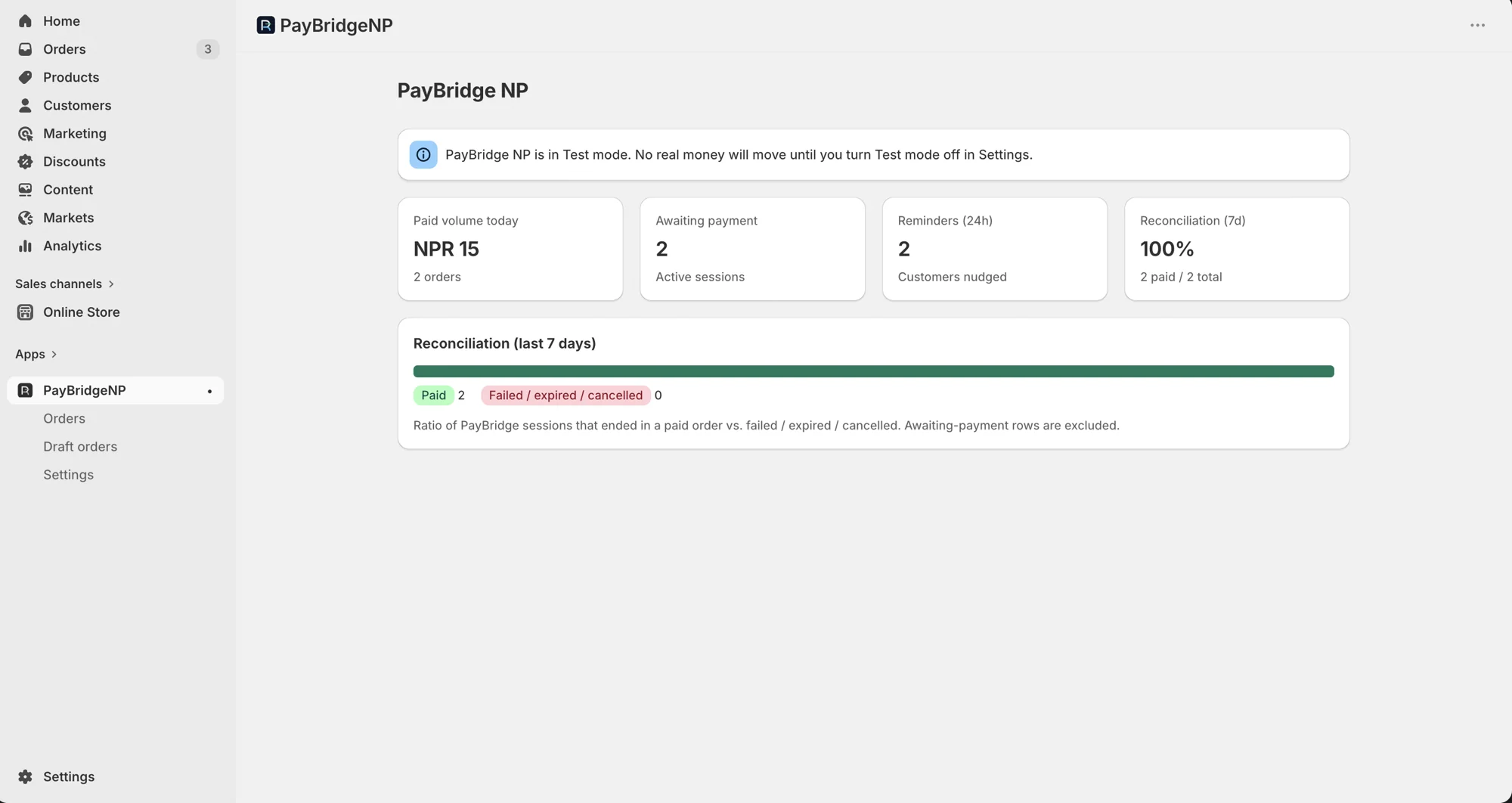
If you don't have a PayBridgeNP account yet, create one at dashboard.paybridgenp.com. Then in the embedded app settings, paste your sk_live_… (or sk_test_…) API key and save.
Once connected, the PayBridgeNP dashboard shows your Shopify store linked and ready:
Configuring Payment Settings
In your Shopify admin, go to Settings > Payments > Manual payment methods, click Add manual payment method > Create custom payment method, and give it a name your customers will recognise (for example, "Pay with Khalti / eSewa / Fonepay"). Then enter that exact name in the PayBridgeNP app settings so it knows which orders to pick up.
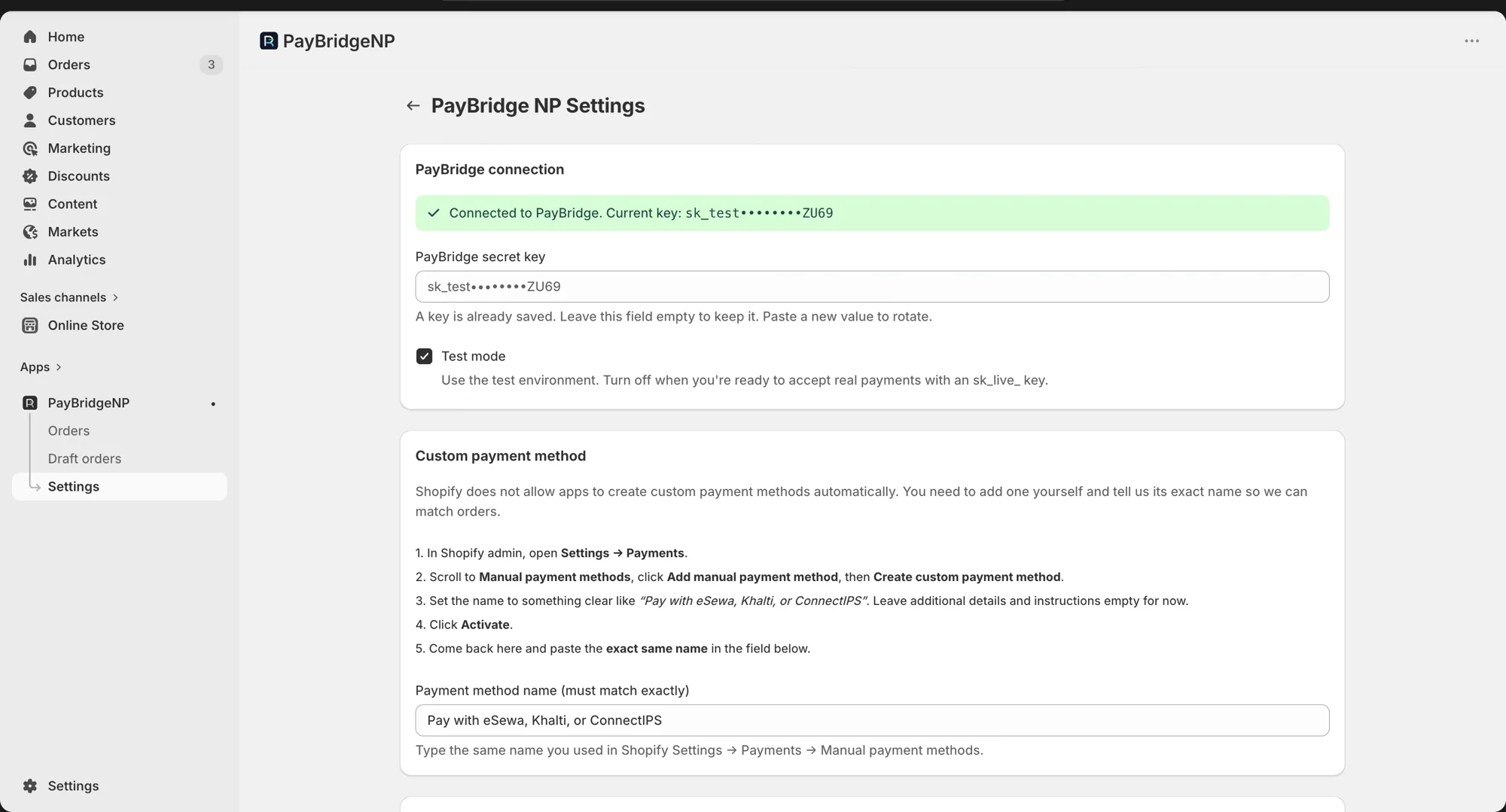
Provider selection: Customers choose between the providers you've enabled in your PayBridgeNP dashboard (Khalti, eSewa, Fonepay). The app's settings page covers everything else: the PayBridgeNP connection, the custom payment method name, customer notifications, the draft-order send-link toggle (Growth plan or higher), an auto-redirect snippet for legacy checkouts, and the webhook.
Currency: All transactions are in NPR, and your store must price in NPR to use the app. Orders placed in any other currency are skipped entirely; the app won't pick them up.
Order timeout: If a customer doesn't complete payment within 48 hours (configurable), the order is automatically cancelled and inventory is released.
The Checkout Experience
When a customer picks your PayBridgeNP payment method and clicks Complete Order:
- Shopify creates the order and marks it Payment pending (no redirect, and no money changes hands at checkout)
- PayBridgeNP sends the customer a payment link by SMS and email; they can also tap Pay now on their Shopify order status page
- The customer opens the link, picks Khalti, eSewa, or Fonepay, and completes payment
- PayBridgeNP confirms the payment and automatically marks the Shopify order Paid
Because the customer pays from a link, they can finish on their own device whenever their wallet is handy, and the order reconciles back to Shopify automatically.
Payment Links for Draft Orders
One of the most useful features for Nepali Shopify merchants: payment links for draft orders.
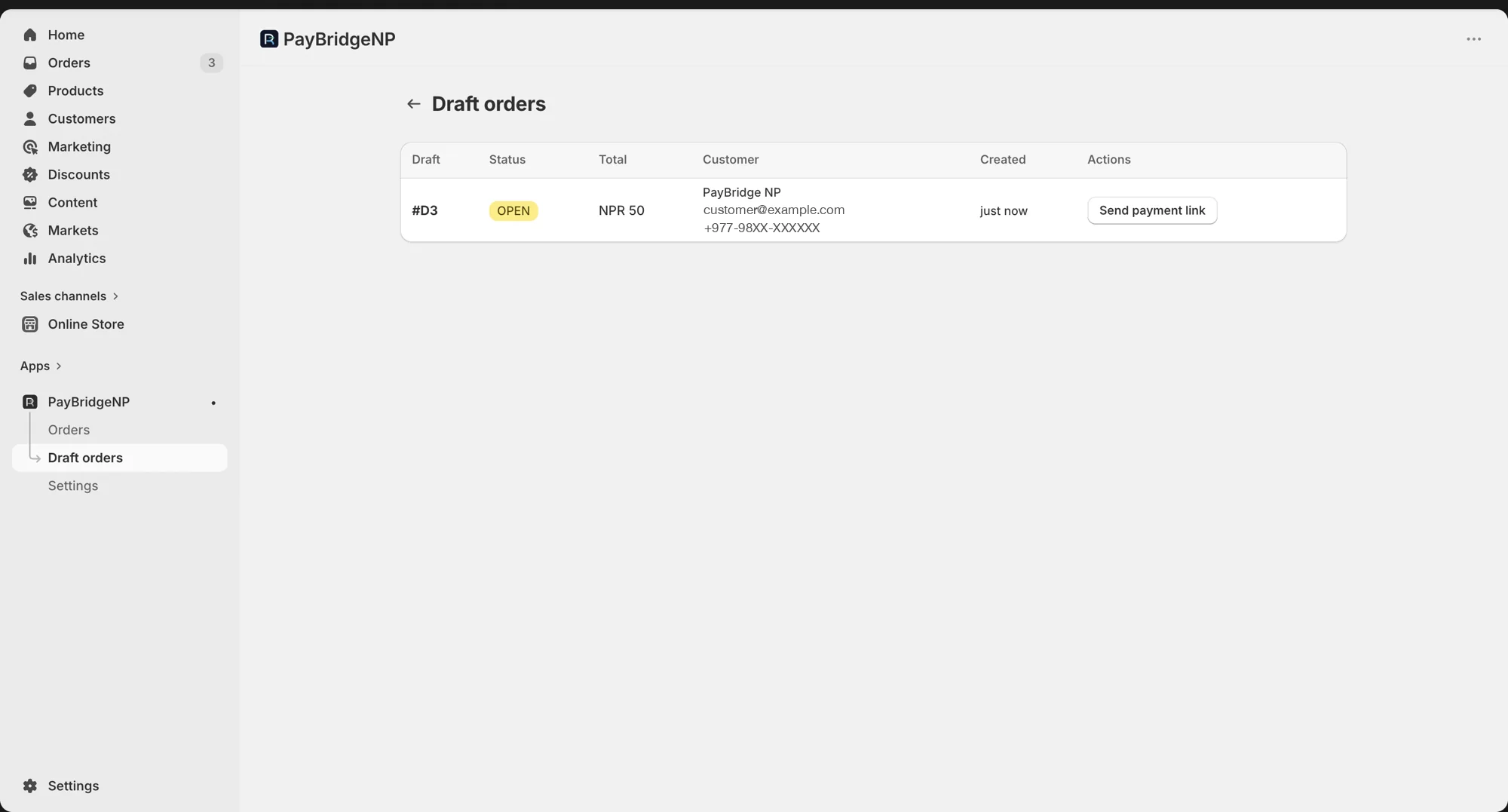
Create a draft order in Shopify admin for a custom order, then click Send payment link to generate and send a payment link by email or SMS. When the customer pays, the order is automatically marked as Paid. This draft-order link feature is opt-in per shop and needs the Growth plan or higher, so turn it on in the app settings first.
This is perfect for:
- Custom orders discussed on WhatsApp or phone
- Wholesale orders
- Partial payments / deposits
Reconciliation
The PayBridgeNP dashboard shows every transaction from your Shopify store in real time. Filter by date and status, or search by order ID. Export to CSV for accounting.
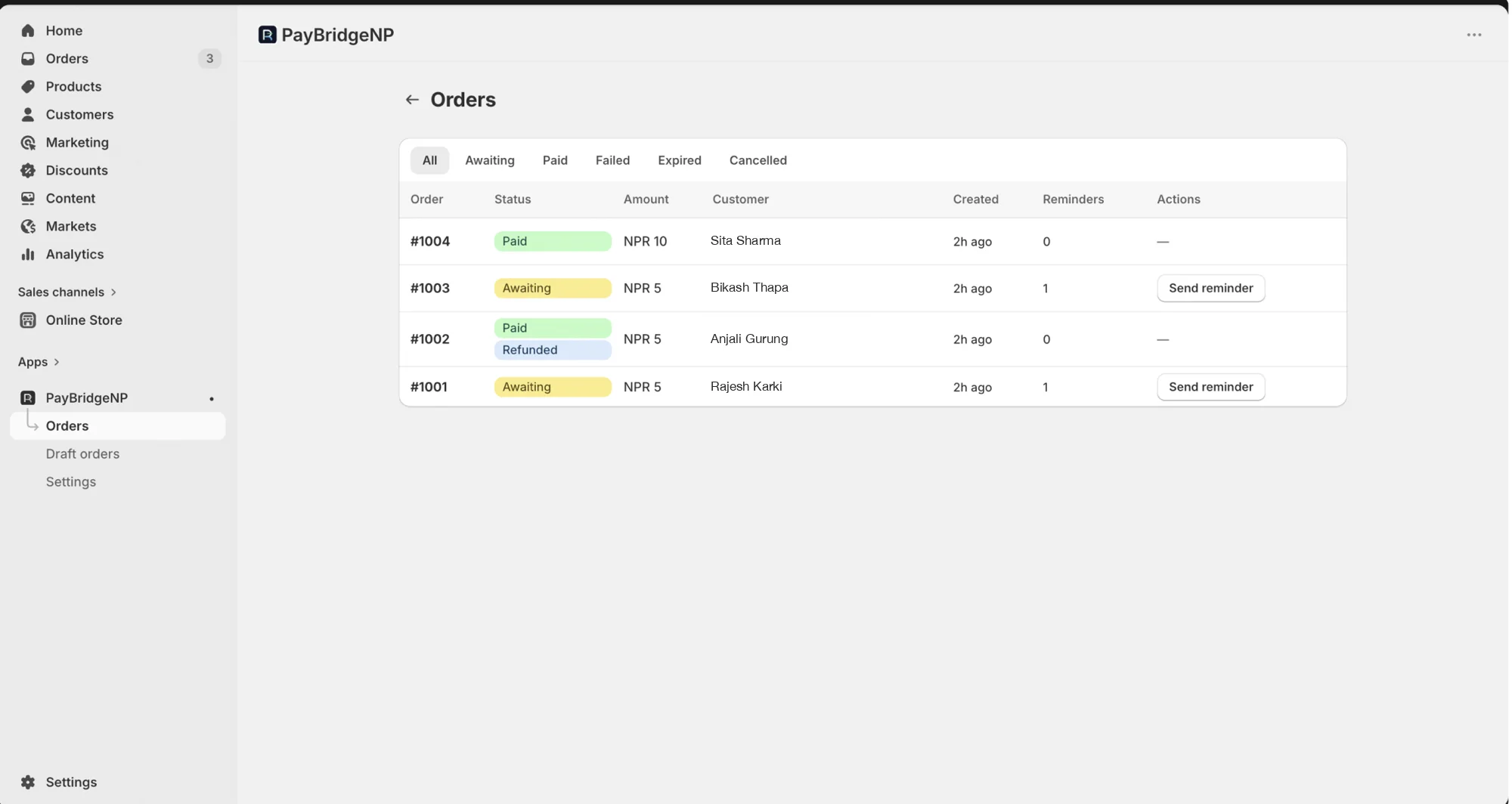
All Shopify orders are linked by order ID. Click any transaction to see the full Shopify order details.
Refunds
Refunds are issued from the PayBridgeNP dashboard, not from Shopify. Open the payment in your dashboard and issue the refund there, which is what actually returns the money to the customer.
Clicking Refund inside Shopify admin only records the refund for your bookkeeping. Because PayBridgeNP is set up as a manual payment method, Shopify cannot move the money itself. The PayBridgeNP app flags any order you refund in Shopify with a "Refund pending" reminder so you don't forget to issue the real refund from the dashboard.
Khalti refunds, including partial refunds, are automated through the PayBridgeNP dashboard. eSewa refunds are recorded as requiring action, and you finish them in the eSewa merchant panel. Fonepay refunds are full-amount and dashboard only. Most are processed automatically. Some accounts have to confirm the refund with Fonepay first: those are recorded as requiring action, and you mark them complete on the dashboard. Fonepay refunds are not available through the API. See the refunds guide for more on how refunds work across Khalti, eSewa, and Fonepay.
Conclusion
PayBridgeNP gives Nepali Shopify merchants a production-ready way to accept Khalti, eSewa, and Fonepay payments. Visit the Shopify integration page to get your store set up and start selling to every Nepali customer today.